Change your phone or address
- Open Me.
-
Under Contact Information, change your Mobile phone (1), Address, City, State or ZIP.
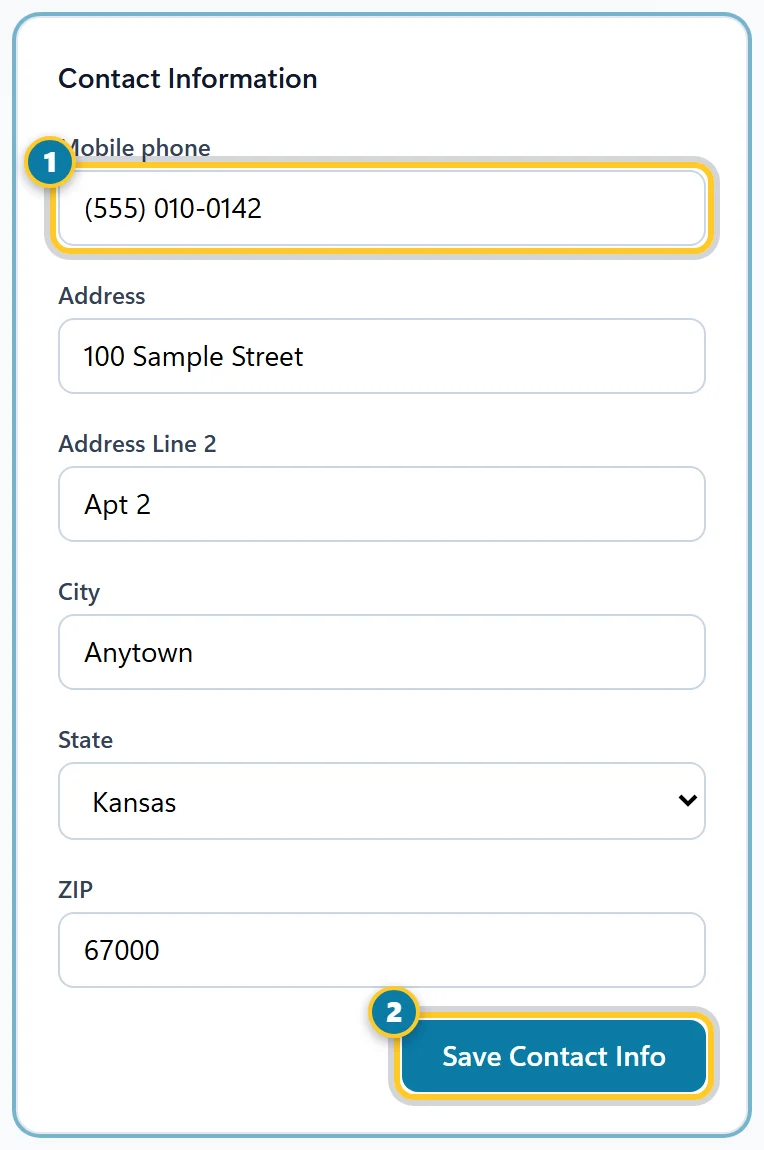
Change your details (1), then save (2). - Select Save Contact Info (2). You'll see "Contact info updated."
Type your mobile phone with its area code. It's the number your company has for you, and sign-in links sent by text go to it. If you have no email on file, you sign in with your mobile phone, so it can't be left blank.
Your name, job, department, hire date and the other Employment Details can only be changed by your manager. Ask them if something is wrong.
Choose what coworkers see in the directory
If your company shares emails or phone numbers in the coworker directory, Me has a Coworker directory card. Tick or clear Show my email and Show my mobile phone, then select Save Directory Choices. See Find a coworker in the directory.
Add an emergency contact
- On Me, scroll to Emergency Contacts.
-
Under Add Emergency Contact, type their Name (1) and Phone. Add how they're related to you and their email if you like.
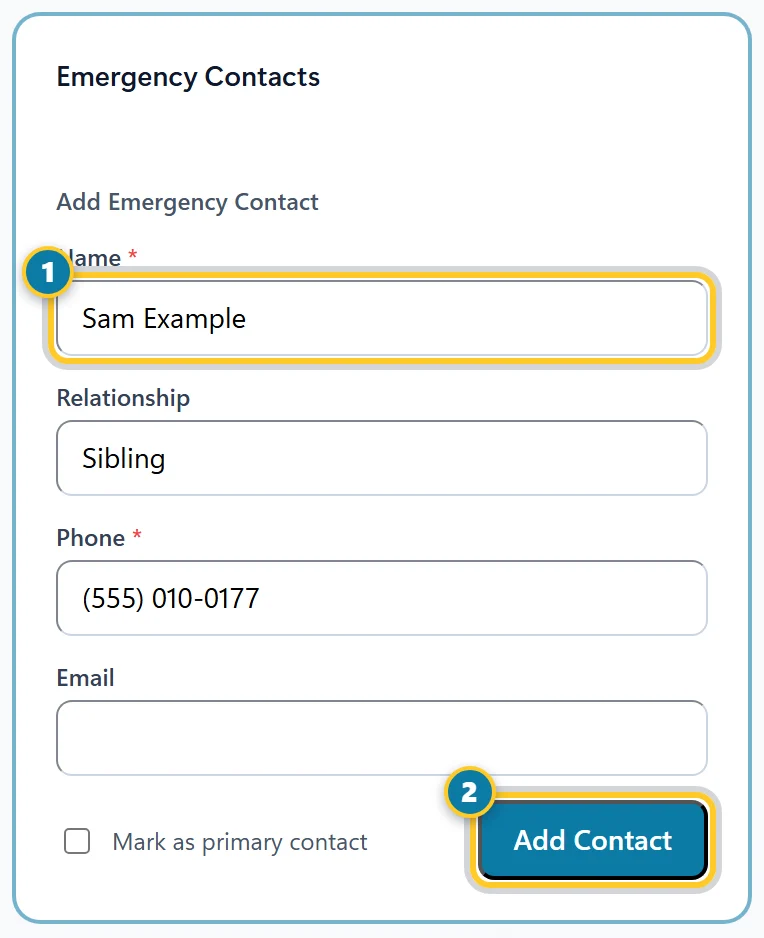
Fill in the contact (1), then add them (2). - Tick Mark as primary contact for the person to call first.
- Select Add Contact (2).
To change a contact, select Remove on it and add it again.
Add a profile photo
Under Profile Photo, choose a JPG, PNG, GIF or WebP picture up to 5 MB and select Upload Photo. Remove photo takes it off.
Change your password
-
On Me, scroll to Change Password and type your Current password (1).
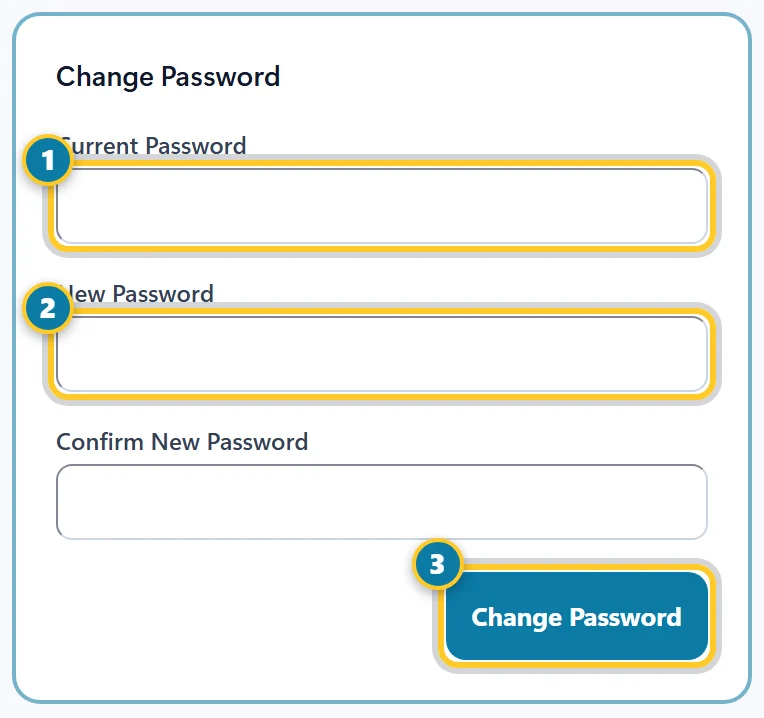
Your current password (1), the new one (2), then save it (3). - Type your new password (2) twice. It must be at least 8 characters.
- Select Change Password (3).
Forgot your password? See Reset a forgotten password. To get texts, see Turn text alerts on or off.