Turn emails on or off and change their wording
- In the menu, under Settings, open Messages & Apps and select Notifications & Emails. Open the Emails tab.
-
Each email has a tick box (1). Untick an email to stop sending it, for example Shift Assigned or Time-Off Decision.
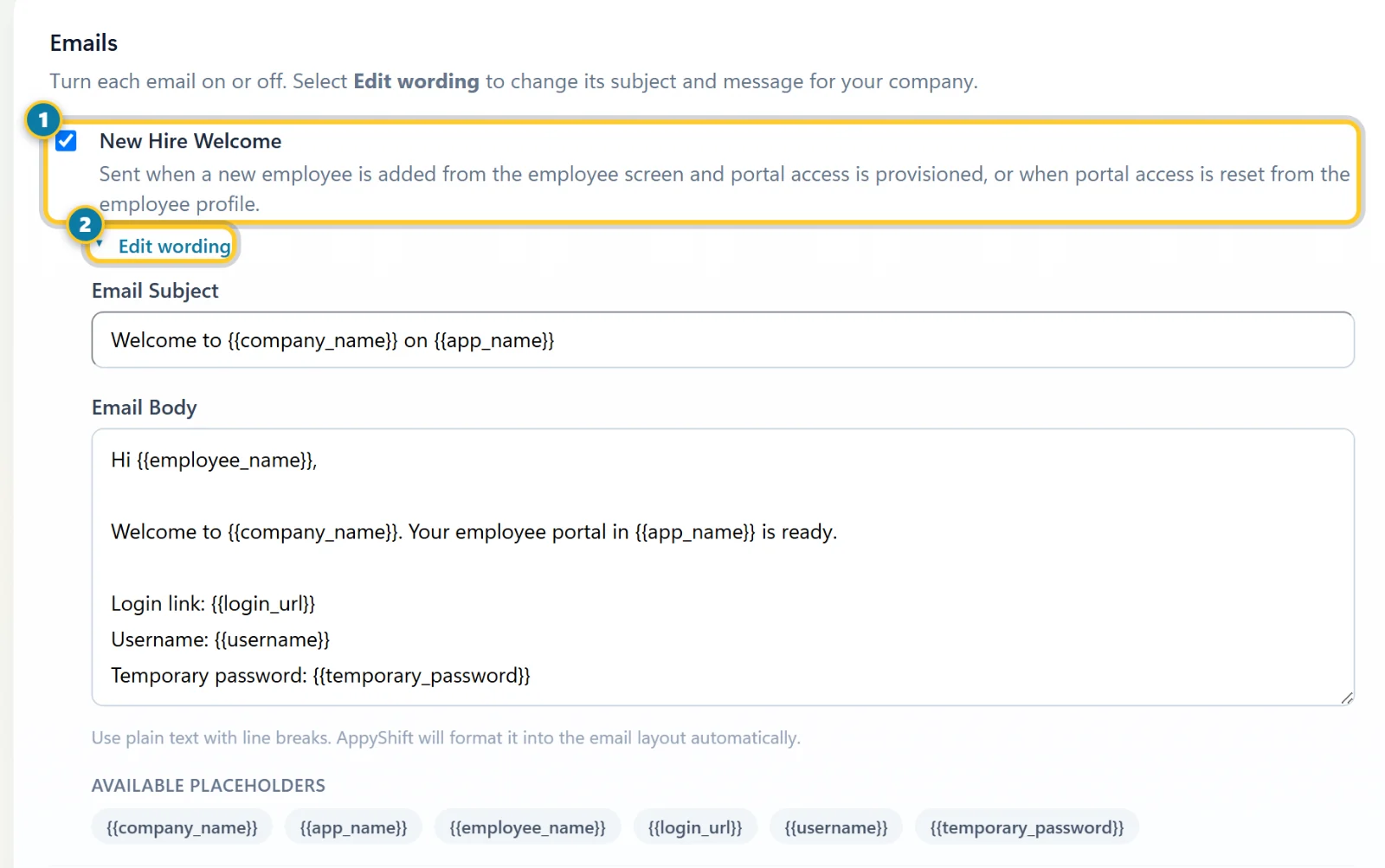
Turn the email on or off (1), or change what it says (2). - To change what an email says, select Edit wording (2) under it. Change the Email Subject and Email Body.
- Use the Available Placeholders, like
{{employee_name}}, to fill in details for each person. Write plain text with line breaks: AppyShift puts it into the email layout. - Select Save Notification Settings.
The emails are New Hire Welcome, Shift Assigned, Schedule Published, Time-Off Request Submitted, Time-Off Decision, Availability Request Submitted, Availability Decision, Employee Call-Out, Shift Coverage swap requests and responses, and the employee task emails. Your wording is used only for your company.
In your first two weeks, three Setup Reminder emails can go to the admin who signed up: Add Your Team (day 2), Publish a Schedule (day 3) and First Clock-In (day 5). Each goes once, and only if that step isn't done yet. Turn any of them off here.
These emails come from noreply@appyshift.com. If someone replies, the reply goes to AppyShift support (support@appyshift.com), not to you, so ask your team to contact you directly about shifts and time off.
New Hire Welcome is the email with a temporary password that new employees get when you add them, or when you reset their app access from their profile. Leave it on unless you share sign-in details another way.
Send alerts to Slack or Microsoft Teams
- In Slack or Teams, create an incoming webhook for the channel you want and copy its URL.
- In AppyShift, open the Slack & Teams tab on Notifications & Emails.
-
Tick Send alerts to this channel (1) and paste the URL into Webhook URL (2).
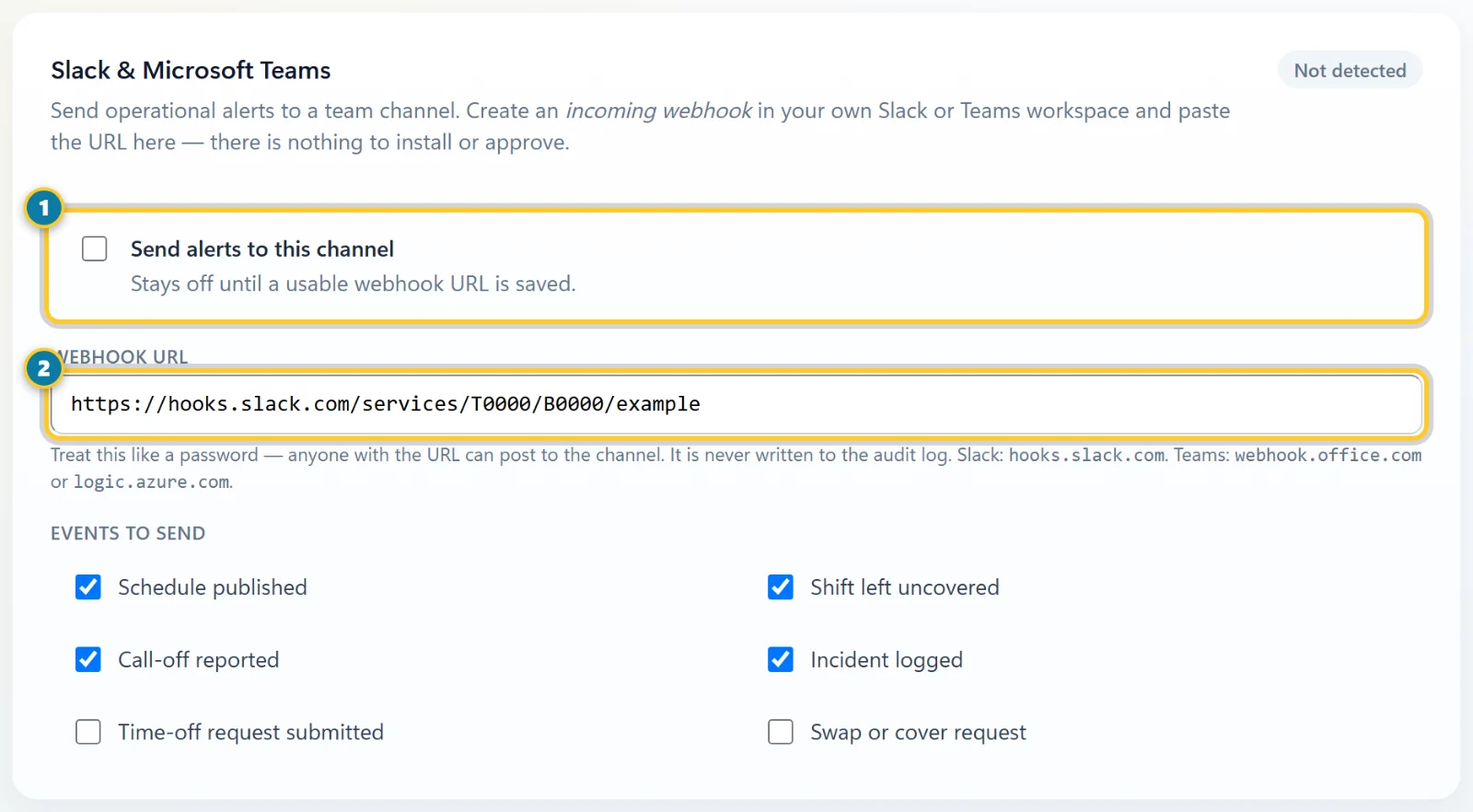
Turn it on (1) and paste the channel's webhook URL (2). - Under Events to send, tick what the channel should hear about: Schedule published, Shift left uncovered, Call-off reported, Incident logged, Time-off request submitted and Swap or cover request.
- Select Save Notification Settings.
- Once the URL is saved, a Send test message button appears. Select it to check that alerts reach the channel.
Treat the webhook URL like a password: anyone who has it can post to your channel. Slack URLs start with hooks.slack.com, and Teams URLs with webhook.office.com or logic.azure.com.
Notifications & Emails comes with every plan. Texts are set up on the Text messages tab: see Turn on text messages for your company.